
Stellar Repair for Access Review: Repair "Unrecognized Database Format" Errors
Microsoft Access is still widely used across small and medium-scale organizations for managing relational data without needing a full database server. However, one of its biggest limitations has always been database file corruption. Once an .MDB or .ACCDB file becomes inaccessible, recovering tables, forms, queries, and reports becomes difficult, especially for non-technical users.
In this software review post, we'll explore why Access databases get corrupted, what Microsoft officially recommends, and whether Stellar Repair for Access is worth using when native recovery like Compact and Repair fails.
Microsoft Access Database Usage (Worldwide & US)
Even in the era of SQL Server and Azure cloud databases, Microsoft Access continues to be heavily used:
- Microsoft Office has over 1.2+ billion users worldwide and Access is commonly used in SMBs, educational institutes, and internal business tools
- In the United States alone, millions of legacy business applications still rely on Access backends
- Many organizations use Access as a front-end UI connected to SQL Server
Why is it still popular?
- No need for a dedicated database administrator
- Easy GUI-based relational database creation
- Integrated reporting & forms
- Ideal for departmental apps, inventory systems, and small ERP tools
But with convenience comes fragility. Access databases are file-based, not server-based - and that leads to corruption.
How Access Database Files Get Corrupted?
Access databases (.MDB/.ACCDB) are extremely sensitive because they operate as shared files over a network. Even a small interruption can damage internal indexes.
Common corruption causes include:
1. Improper Shutdown
- Power failure, system crash, forced reboot
- Network disconnection during a write operation
2. Multi-User Conflicts
When multiple users edit the same records simultaneously, the locking mechanism can fail.
3. Exceeding File Size Limit
- MDB limit: 2 GB
- ACCDB limit: 2 GB
Large indexes and attachments increase corruption risk.
4. Hardware Issues
- Bad sectors
- Failing HDD/SSD
- Faulty network drives
5. Malware & Antivirus Interference
Security software sometimes interrupts file locking operations.
6. Improper Compact & Repair Operations
Ironically, even Microsoft's built-in repair tool can sometimes worsen the damage if the file structure is severely corrupted.
Native Methods to Recover Access Database Objects
Microsoft provides a built-in recovery utility called Compact and Repair Database.
Method 1: Compact & Repair
Steps:
- Open MS Access
- Go to Database Tools
- Click Compact and Repair Database
- Select corrupted file
What it does:
- Rebuilds indexes
- Removes temporary data
- Attempts structural repair
Method 2: Import into New Database
- Create a blank Access DB
- Import objects from corrupted database
- Import tables, queries, forms, reports
Useful when only some objects are damaged.
Method 3: Decompile Access Database
Run Access with the /decompile switch to remove compiled VBA corruption.
What Happens When Native Methods Fail?
Here's the real problem: Microsoft tools only work when corruption is minor.
They fail when:
- System tables are damaged
- Relationships break
- Queries crash Access
- File won't open at all
- "Unrecognized database format" error appears
- Database shows 0 KB size
- Password-protected database corrupted
At this point, the database is logically broken, not just fragmented - and manual recovery becomes nearly impossible. This is where specialized repair software becomes necessary.
Stellar Repair for Access - Introduction
Stellar Repair for Access is a dedicated recovery utility designed to rebuild corrupted MDB and ACCDB files and extract all database objects into a new healthy database.
Unlike Microsoft's built-in repair tool, it does not attempt to fix the file internally - it reconstructs the database structure and exports recovered components.
Supported recovery objects include:
- Tables (with relationships)
- Queries
- Forms
- Reports
- Macros
- Modules
- Linked tables
- Deleted records (in some cases)
The software works even when Access fails to open the file.
Key USPs
1. Recovers Severely Corrupted Databases
Works even when:
- Access crashes while opening
- Database header is damaged
- Compact & Repair fails
2. Preview Before Saving
You can preview all recovered tables and records before purchasing - very useful for verifying recovery success.
3. Recovers Deleted Records
Unlike native tools, it can extract records that were deleted but still exist in database pages.
4. Supports Large Databases
Handles databases close to the 2GB limit without splitting manually.
5. Maintains Relationships & Structure
Rebuilds:
- Primary keys
- Indexes
- Relationships
This is crucial because losing relationships makes applications unusable.
6. Simple Non-Technical Interface
Designed for accountants, teachers, office staff - not just DBAs.
7. Saves into New Database
Prevents overwriting the original corrupted file - a safer recovery approach.
Lab Test of Stellar Repair for Access
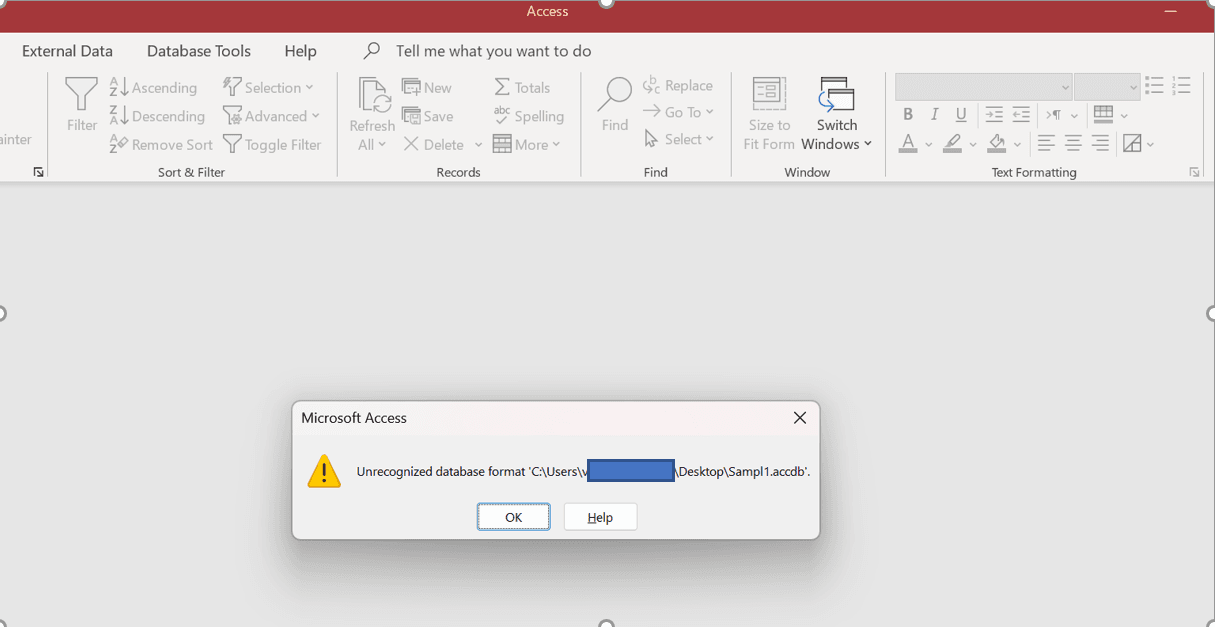
To evaluate Stellar Repair for Access for this review, our team created a sample database containing multiple tables and records and then intentionally corrupted the file. When I attempted to open it in Microsoft Access, a pop-up error appeared stating: "Unrecognized database format."
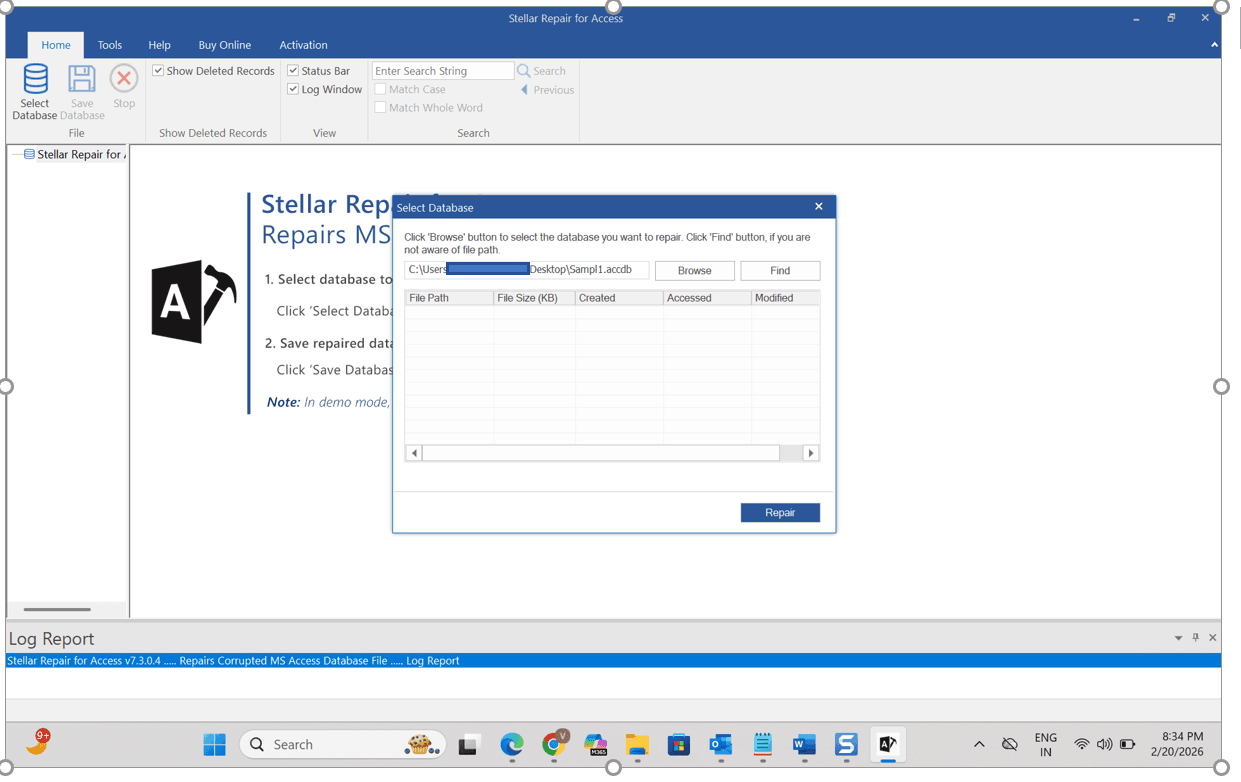
Now let's open the Stellar tool and observe how it handles a corrupted Access (.ACCDB) database file.
Use the Browse or Find option to locate the damaged database. In our case, we used Browse because the file was stored on the Desktop. After selecting the file, click the Repair button to proceed and initiate the repair process.
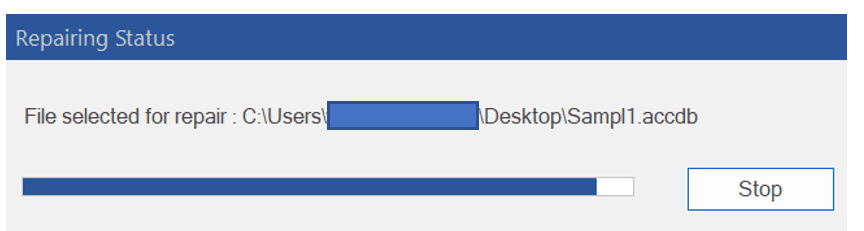
The repair process will now begin, and you'll see a progress window indicating that the software is scanning and analyzing the corrupted database file.
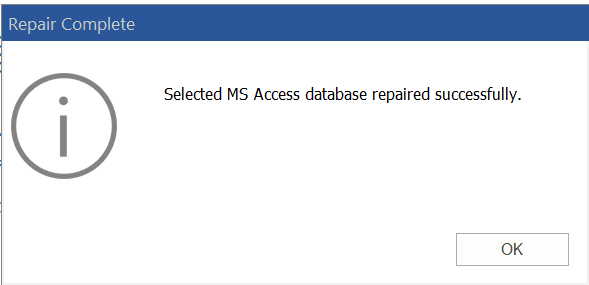
Repair is finished successfully.
Once the repair is complete, you can preview the recovered database tables, which are listed in the left pane of the application.
Naturally, this is the decision point - if the software successfully previews your data, you can recover it by purchasing the activation key and exporting the repaired content into a new database file.
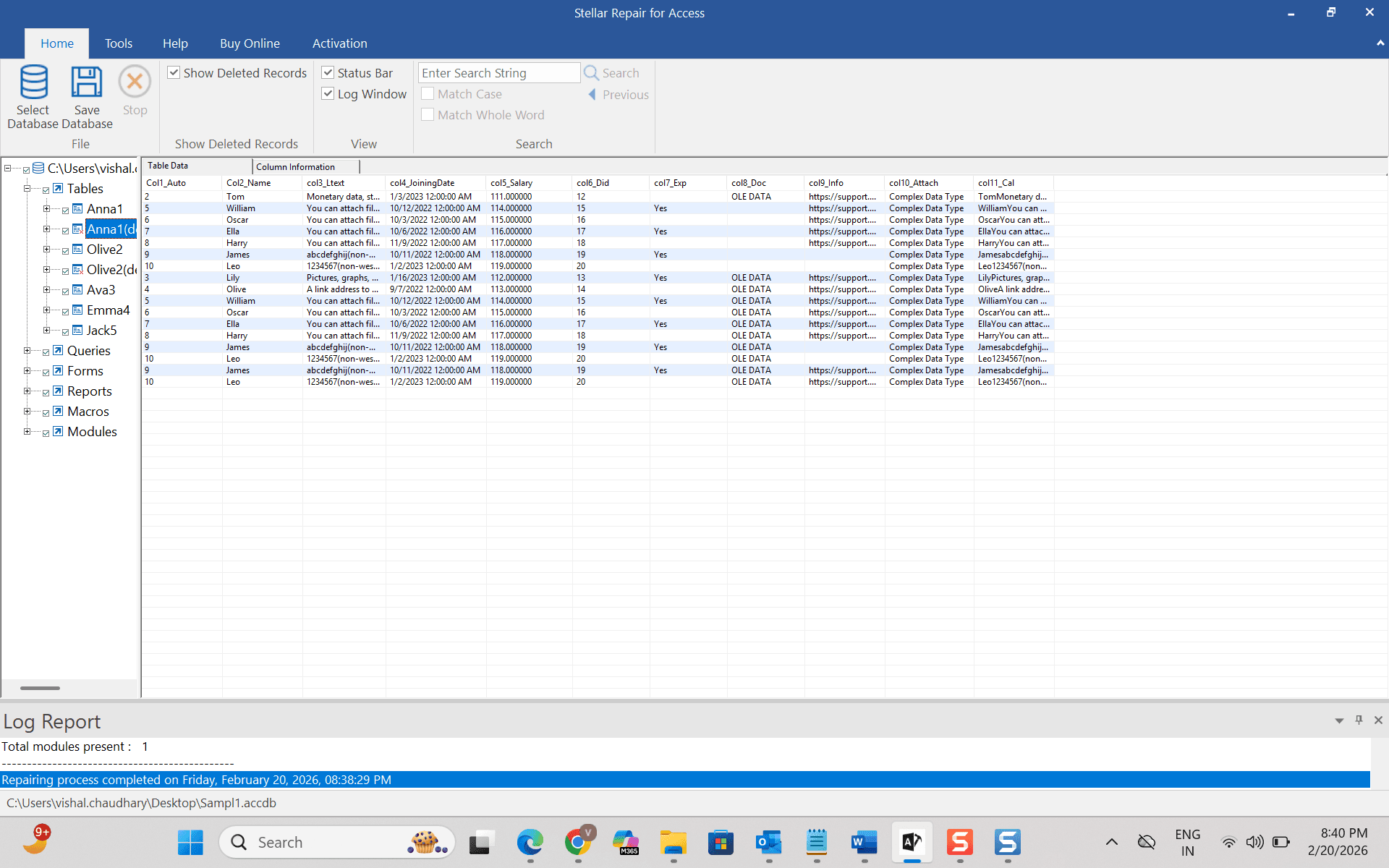
Once the data is verified, you can export it as shown in the figure below.
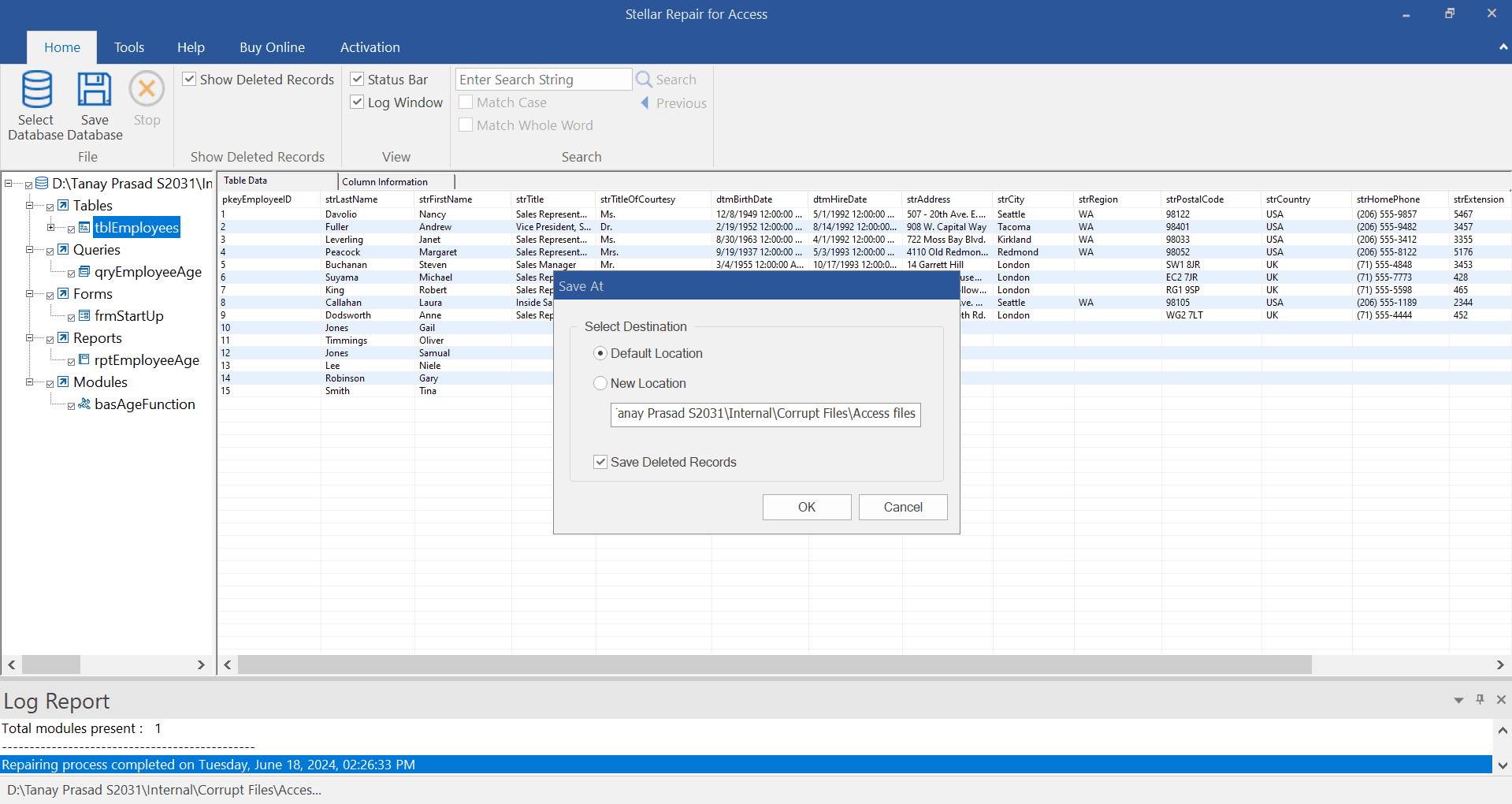
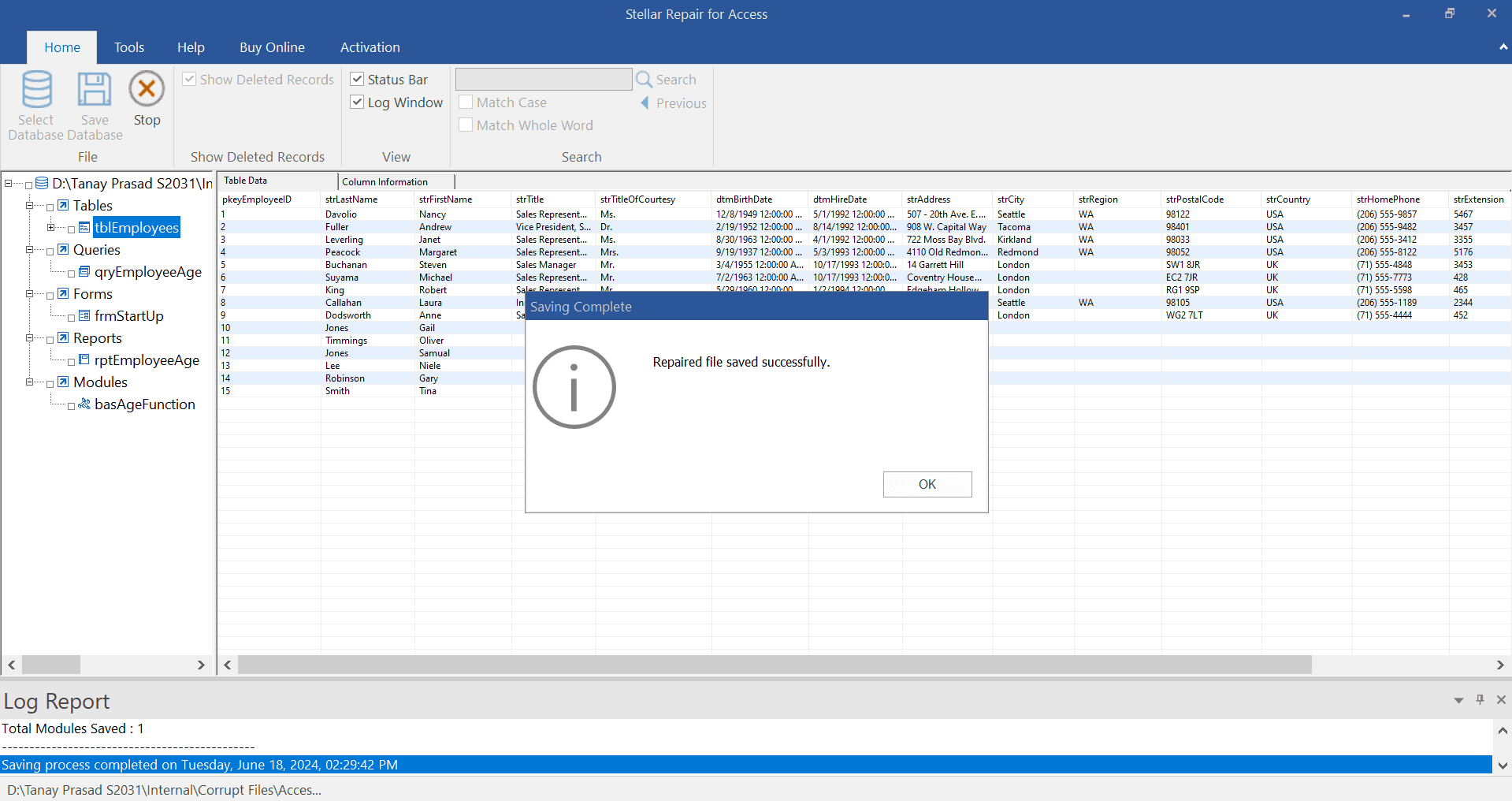
The repaired database is saved to a location selected by the user.
Conclusion
After testing it with a deliberately corrupted database, Stellar Repair for Access proved to be a dependable recovery solution. The software successfully detected the damage, reconstructed the database structure, and allowed a full preview of tables and records before requiring activation - which is particularly useful because users can confirm their data is recoverable before spending money.
What stands out most is its practicality. Instead of attempting risky manual fixes or complex workarounds, the tool simplifies recovery into a guided process that even non-technical users can follow. It also preserves relationships and structure, which is often the biggest concern when dealing with Access corruption.
Overall, if Microsoft's built-in repair utilities fail and the database contains important information, Stellar Repair for Access is a reliable and time-saving option. It may not be something you use every day, but when a critical database becomes inaccessible, it can quickly turn a potential data loss situation into a successful recovery.