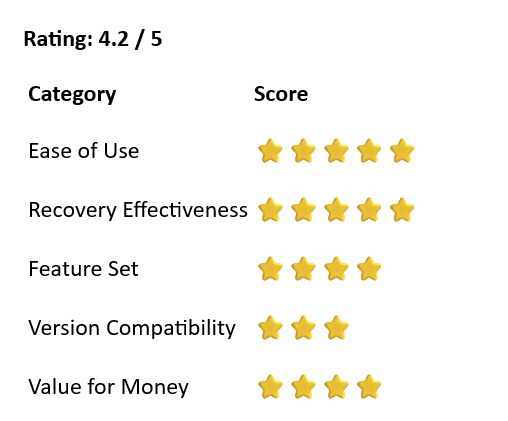
Stellar Repair for MySQL Review: Can It Actually Save a Dead Database?
If you've ever stared at a MySQL error log at midnight, watching a production database refuse to come back online, you know that sick feeling in your stomach. Backups? Maybe outdated. Support ticket? Not going to help you right now. That's exactly the kind of situation where a tool like Stellar Repair for MySQL is supposed to ride in and save the day.
I put it through its paces — intentionally broke a working MySQL database and then used the tool to bring it back. Here's my honest take.
Who Is This Tool Actually For?
Let me be upfront about something: Stellar Repair for MySQL is not a tool you install "just in case" and forget about. It's a purpose-built recovery utility for when things have already gone wrong. That means your audience is fairly specific — database administrators, developers managing self-hosted MySQL setups, and IT teams dealing with corrupted data from server crashes, power failures, or storage hardware failures.
If you're running a small WordPress site on shared hosting, this probably isn't for you. But if you maintain MySQL databases on your own infrastructure — especially databases running on InnoDB or MyISAM storage engines — having something like this in your toolkit is worth thinking about before you need it, not after.
First Impressions: Installation and Interface
Installation was completely painless. No bundled junk, no sneaky checkboxes trying to install a browser toolbar. You download the installer, click through a handful of standard prompts, and you're done in under a minute.
When the software opens, it presents you with a clean, straightforward interface. The home screen immediately shows you a "Select Data Folder" prompt — which tells you exactly what it needs and where to go. There's no bloated ribbon menu or confusing sidebar. The layout communicates its purpose right away, which I genuinely appreciate in a professional utility. You're not here to explore — you're here to fix something.
The tool supports both Windows and Linux environments. On the Windows side, it runs on everything from Vista through Windows 11, plus Windows Server editions (2003, 2008, 2012). On Linux, you get CentOS 7, Red Hat Enterprise Linux 7, and a couple of Ubuntu versions (16.04 through 19.10). That's solid coverage for most production environments.
Setting Up the Test: Breaking the Database on Purpose
Before reviewing a repair tool, you have to actually break something. I used a sample MySQL database — a reasonably sized one with multiple tables — installed through MySQL Workbench. With the server running clean and queries returning expected results, I deliberately corrupted the InnoDB tablespace file using a hex editor, wiping out records from one of the core table files.
Relaunched MySQL Workbench after swapping in the corrupted file. The result: the server crashed entirely. The table was completely unreadable and the database threw errors on every attempted query. That's about as bad as it gets for a live environment scenario.
Good. Now let's see what Stellar can do with it.
The Repair Process: Step by Step
Step 1 — Select the data folder. Before launching the repair, you need to stop the MySQL server service first. The tool will throw a "file already in use" error if MySQL is still running. This is a minor but important gotcha — especially if you're doing this under pressure. On Windows, you can stop it from the command line with admin privileges.
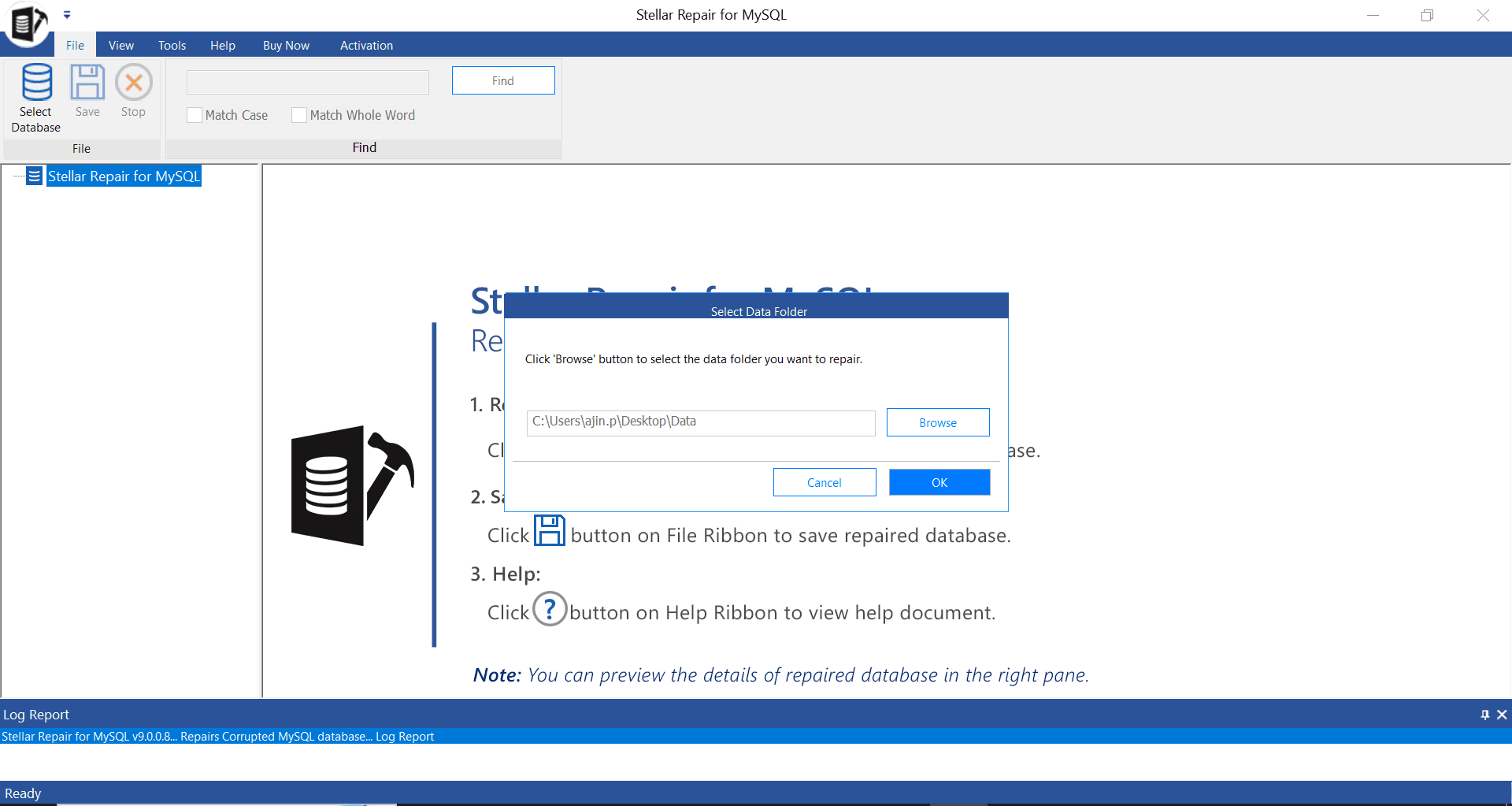
Also worth noting: the MySQL data folder is inside ProgramData, which is hidden by default on Windows. You'll need to enable hidden folder visibility in Explorer before you can navigate to it. Not a dealbreaker, but first-timers should know this going in.
Step 2 — Select databases to repair. Once you've pointed the tool at the right directory, it reads the folder and presents a list of databases it found. You can select all of them or just specific ones. I selected the corrupted database and clicked Repair.
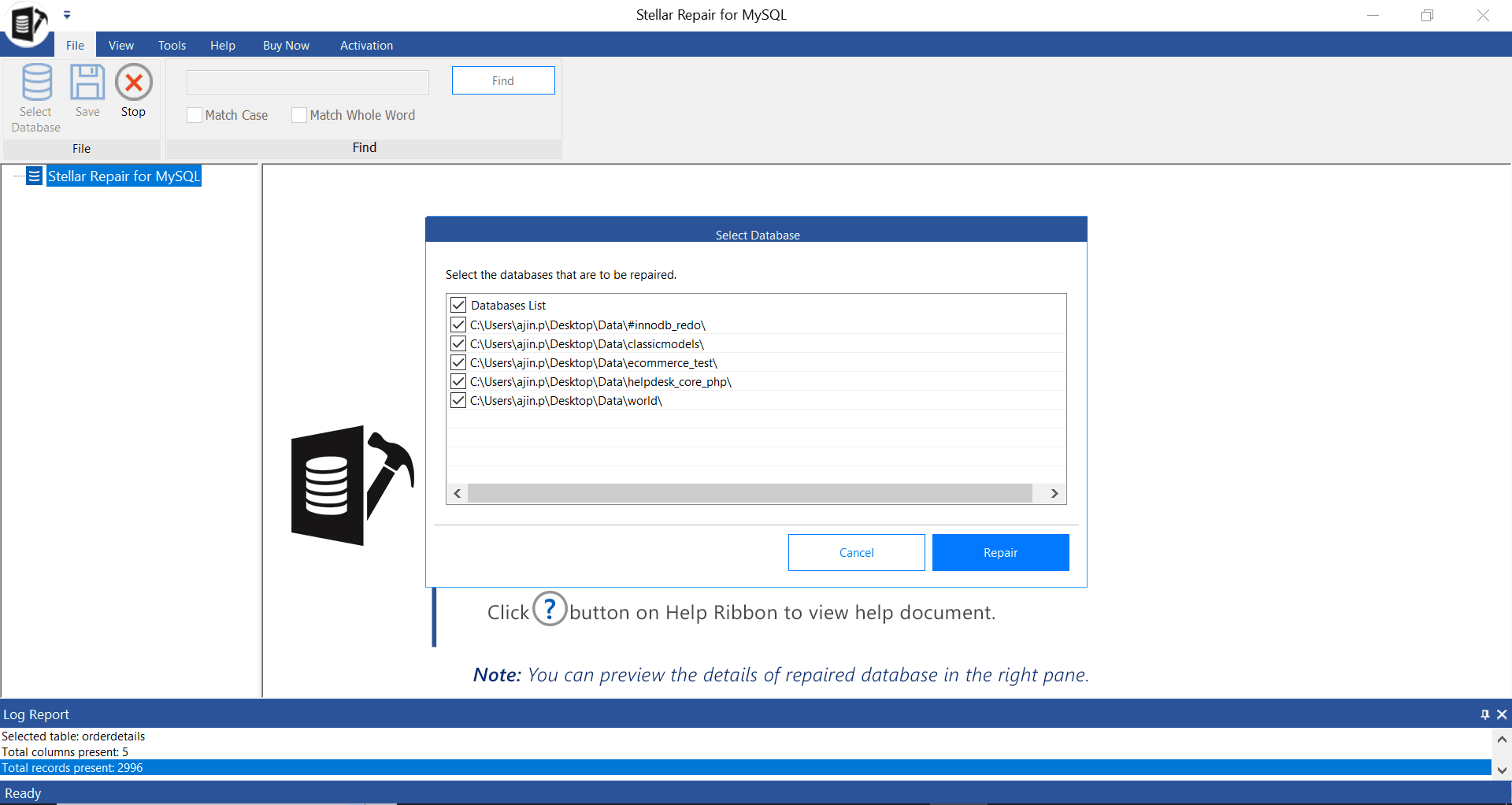
Step 3 — Watch the scan run. The tool runs its scan and repair sequence fairly quickly, even on a moderately sized database. A progress indicator shows you where it is in the process, and a completion dialog tells you when it's done.
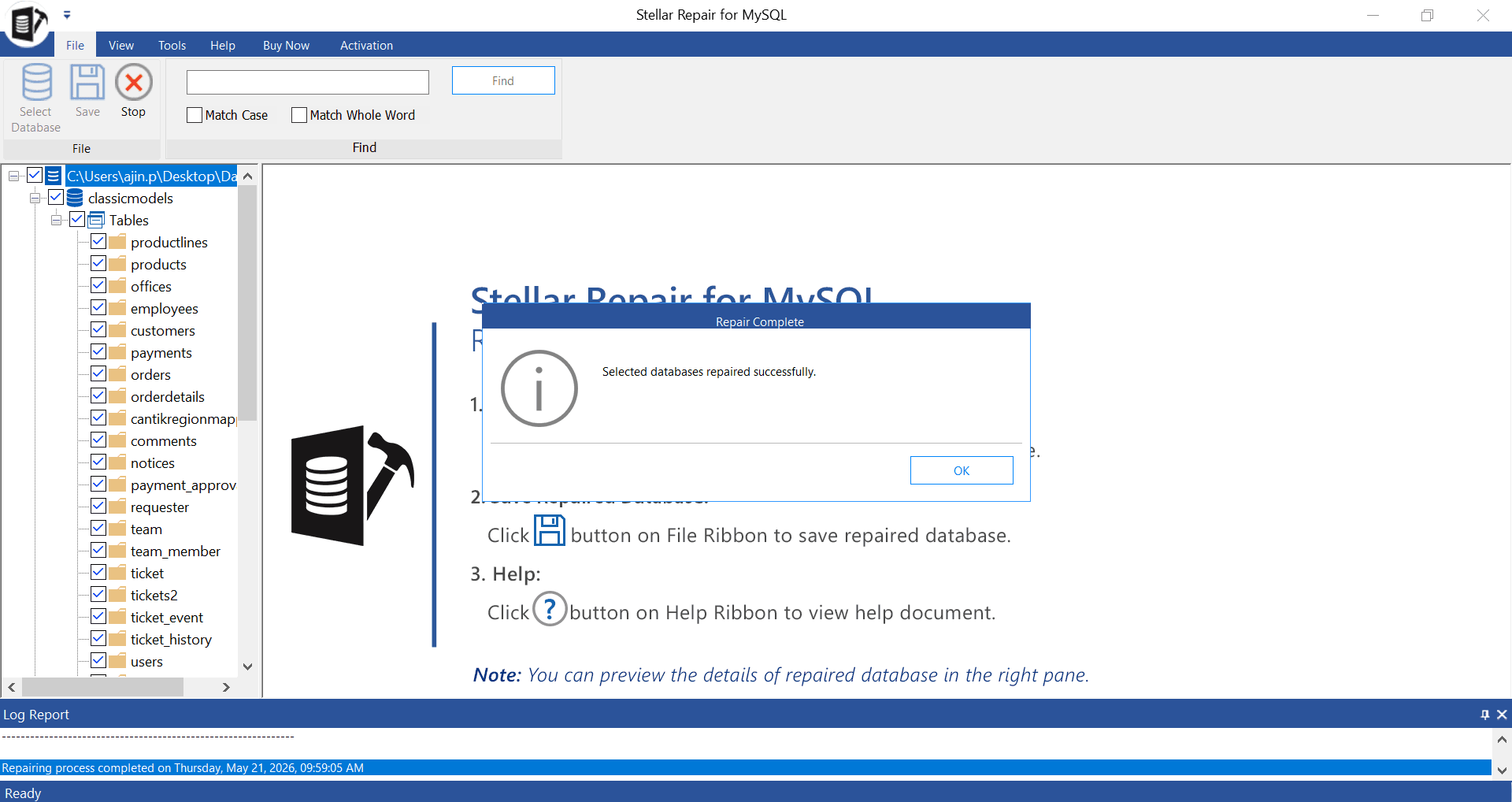
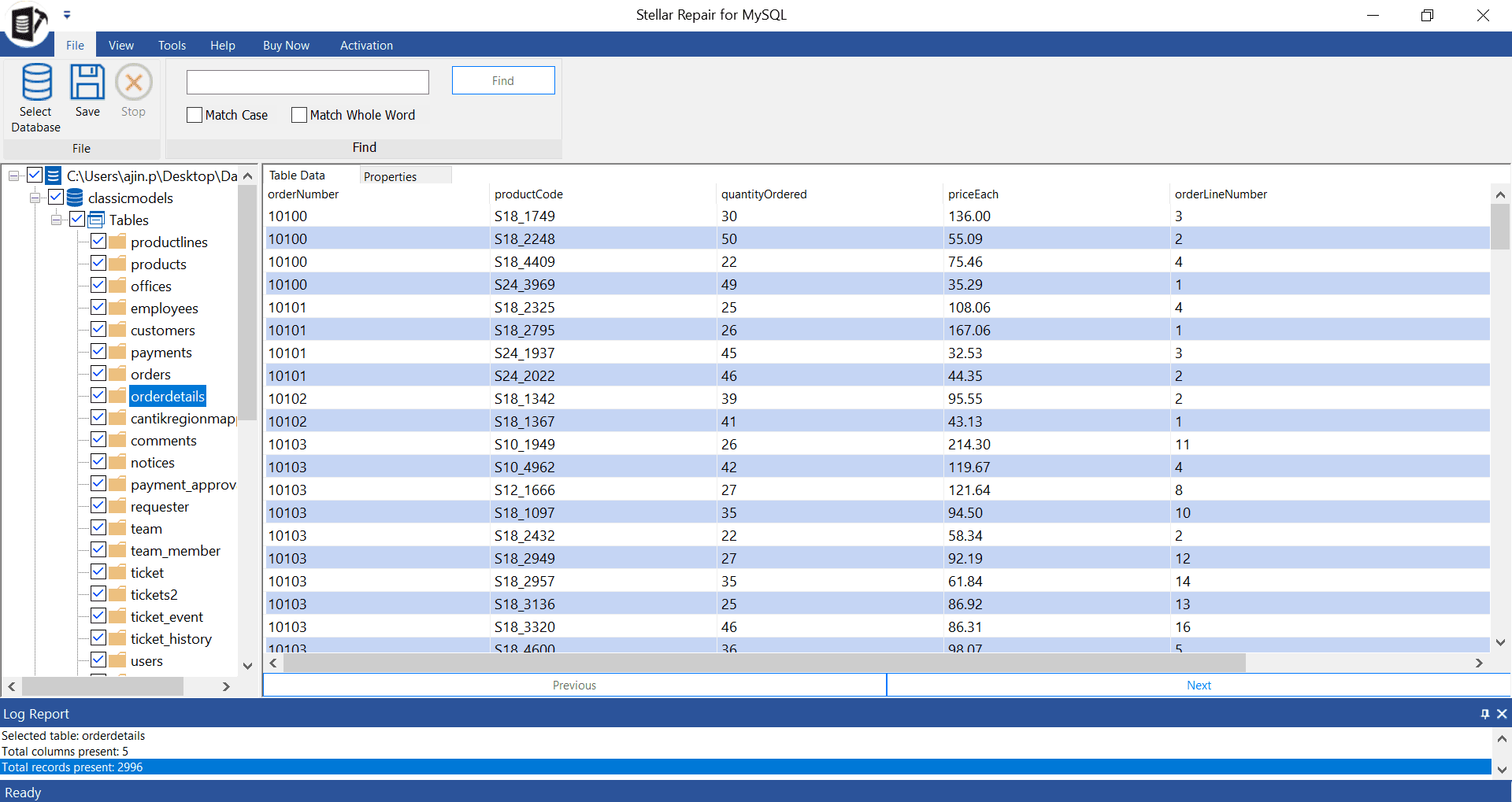
Step 4 — Preview the recovered data. This is one of the better features in the free version. Before you pay or commit to saving anything, the tool shows you a tree-view preview of all recovered database objects — tables, stored procedures, views, triggers, indexes. You can click through individual tables and see the actual rows of data before deciding to save. This matters a lot. You're not flying blind into a purchase.
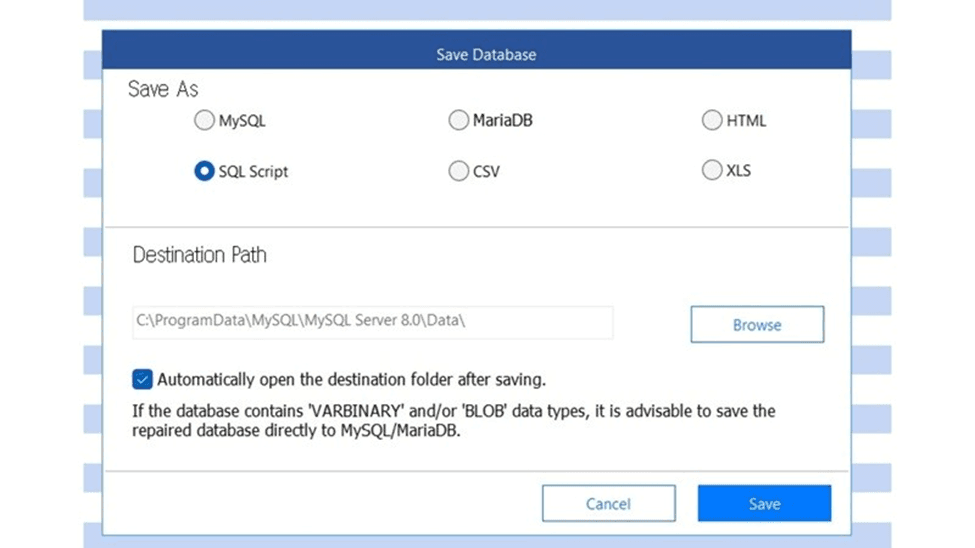
Step 5 — Save the repaired data. Once you activate the full version, you get five export options: back directly into a MySQL database, as an SQL script, or as CSV, HTML, or XLS files. The SQL script option is particularly useful because it lets you review the output before running it, rather than having the tool write directly to a live database.
The data came back clean. All rows were present, and a test query in Workbench after importing the SQL script returned accurate results.
Features Worth Knowing About
Storage engine support. The tool handles both InnoDB and MyISAM database files. InnoDB has been the default engine for MySQL for years, so this is the critical one for most modern setups.
MySQL version compatibility. Supported versions include MySQL 3.x, 4.x, 5.x, 6.x, and 8.x, as well as MariaDB up to version 11.3.2. That said — and this is worth flagging — the current version of the software tops out at MySQL 8.0.36. If you're running a freshly installed MySQL instance and grabbed the latest release (8.0.39 or newer at the time of writing), you may run into compatibility issues. The software didn't detect my newer installation at first, and I had to specifically check the supported version ceiling before things clicked into place. This isn't a fatal flaw, but it's something Stellar needs to address with ongoing updates. Always verify your MySQL version against the tool's supported range before purchasing.
What gets recovered. Beyond raw table data, the tool also attempts to recover stored procedures, functions, triggers, views, and indexes. For a database that also holds business logic in the server layer, this is important — losing your stored procedures alongside your data would be a double blow.
Multiple save formats. The variety of export options genuinely adds flexibility. Being able to export to CSV or XLS means non-technical stakeholders can access the recovered data immediately while engineers work on rebuilding the live environment. The HTML export could work as a quick audit trail or documentation snapshot.
Pricing: Is It Worth It?
Stellar offers two main tiers. The standard license runs $199, and the technician/enterprise tier is $499 with expanded capabilities and multi-system licensing.
For an individual or small team managing their own MySQL infrastructure, $199 is a reasonable one-time expense to have available when disaster strikes — especially when you consider what even a few hours of data loss or downtime costs in a business context. You're not paying for a subscription; you're paying for the ability to recover your own data without relying on a third-party data recovery service that would likely charge far more.
That said, the smart move is to use the free preview mode before buying. Scan the corrupted database, look at what the tool can actually recover, and then decide. If the preview shows your data is there and readable, the purchase makes sense. If it can't find what you need, you've lost nothing.
What Could Be Better
A few things I'd like to see improved:
Version support needs to stay current. MySQL releases updates regularly, and the tool's supported ceiling falling behind by even a few minor versions can catch users off guard. Stellar should either update support faster or be more visible in their marketing about the exact version cutoff.
Linux setup documentation. The Windows workflow is well-documented, but Linux users get comparatively sparse guidance in the UI itself. A more guided walkthrough for Linux environments would be a welcome addition.
Scheduled scanning or monitoring. Right now the tool is entirely reactive — you run it when something breaks. A lightweight monitoring companion that could flag early signs of table corruption before full failure would turn this from a rescue tool into something more proactive.
Final Verdict
Stellar Repair for MySQL does what it says it does. The recovery works, the interface is honest and clear, and the free preview mode before purchase is the right way to build user trust. For anyone running MySQL on their own infrastructure — whether that's a developer with a side project or a DBA protecting production systems — this tool earns its place in the emergency kit.
The MySQL version ceiling is a real limitation that deserves attention from Stellar's development team. But if your database version falls within the supported range, this is a reliable, no-nonsense solution for getting corrupted data back.
Bottom Line: A solid, dependable MySQL recovery tool that delivers on its core promise. Check your MySQL version before you buy, use the free preview to confirm recovery is possible, and keep this one on standby for when things go sideways — because eventually, they do.